Filters Activity Stream for Cloud: Installation Guide
Getting started
Filters Activity Stream is a dashboard gadget that shows a list of the most recently changed content in your Jira site. Compared to the standard Activity Stream, Filters Activity Stream lets you configure a basic or JQL filter. This meets many business needs, such as browsing worklog activity, or retrieving issues with specific components, sprints or versions, and much more.
- You need at least one filter that you have access to or own on your instance.
- The filter must be visible to other users if the dashboard is shared.
- We recommend a filter display limit of 100 issues, to match the cloud architecture and improve performance.
Questions? Ask us any time.
Installing Filters Activity Stream for Cloud
- Log in to your Jira instance as an admin.
- Click the admin dropdown and choose Add-ons. The Find new apps (or Find new add-ons) screen loads.
- Locate Filters Activity Stream.
- Click Free trial to download and install the app.
- You're all set! Click Close in the Installed and ready to go dialog.
Enabling third-party cookies in your browser
To use Filters Activity Stream and see the comment editor, third-party cookies must be enabled. Please check your browser configuration.
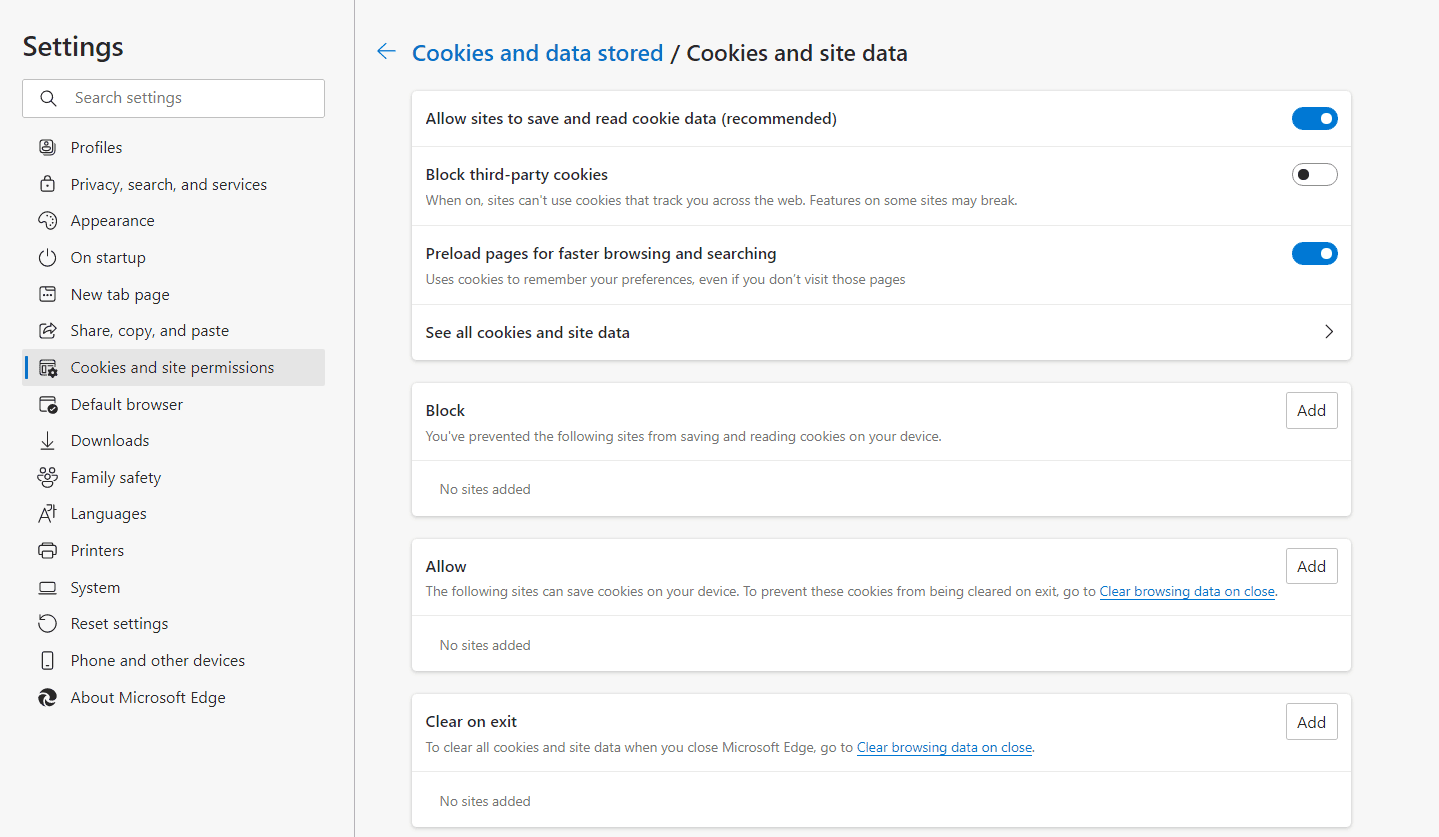
Microsoft Edge
- Open Microsoft Edge and select Menu (the three-dot icon in the top right corner) > Settings > Site permissions > Cookies and site data.
- Turn off “Block third-party cookies”.
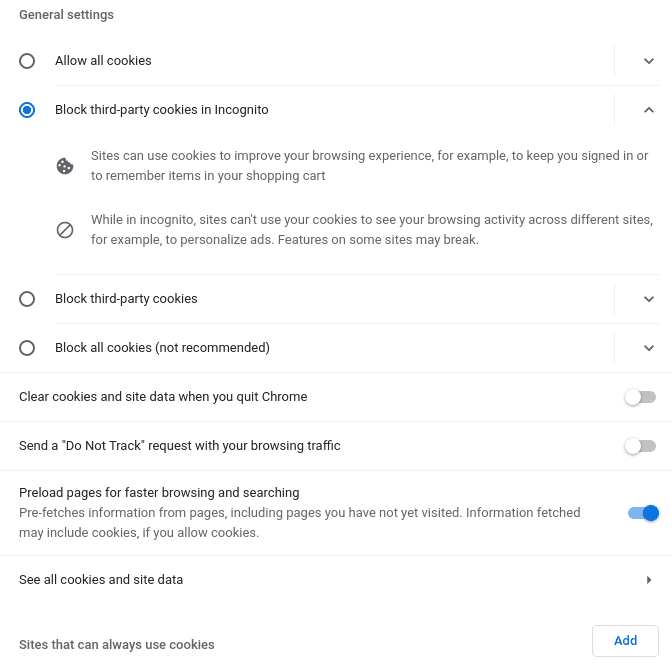
Chrome
- Open Chrome and select Menu (the three-dot icon in the top right corner) > Settings > Privacy and security > Cookies and other site data.
- Turn on “Allow all cookies” or “Block third-party cookies in Incognito”.
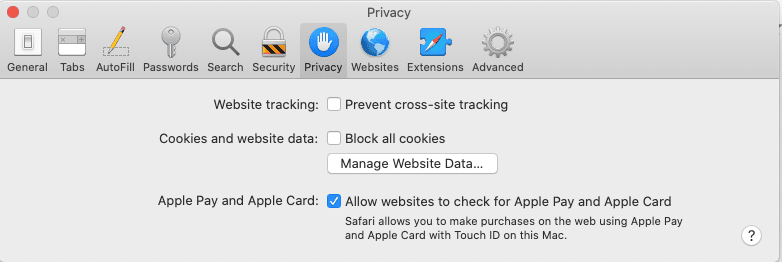
Safari
In the Safari app on your Mac, choose Safari > Preferences, click Privacy, then:
- Turn off “Prevent cross-site tracking”.
- Turn off “Block all cookies”.
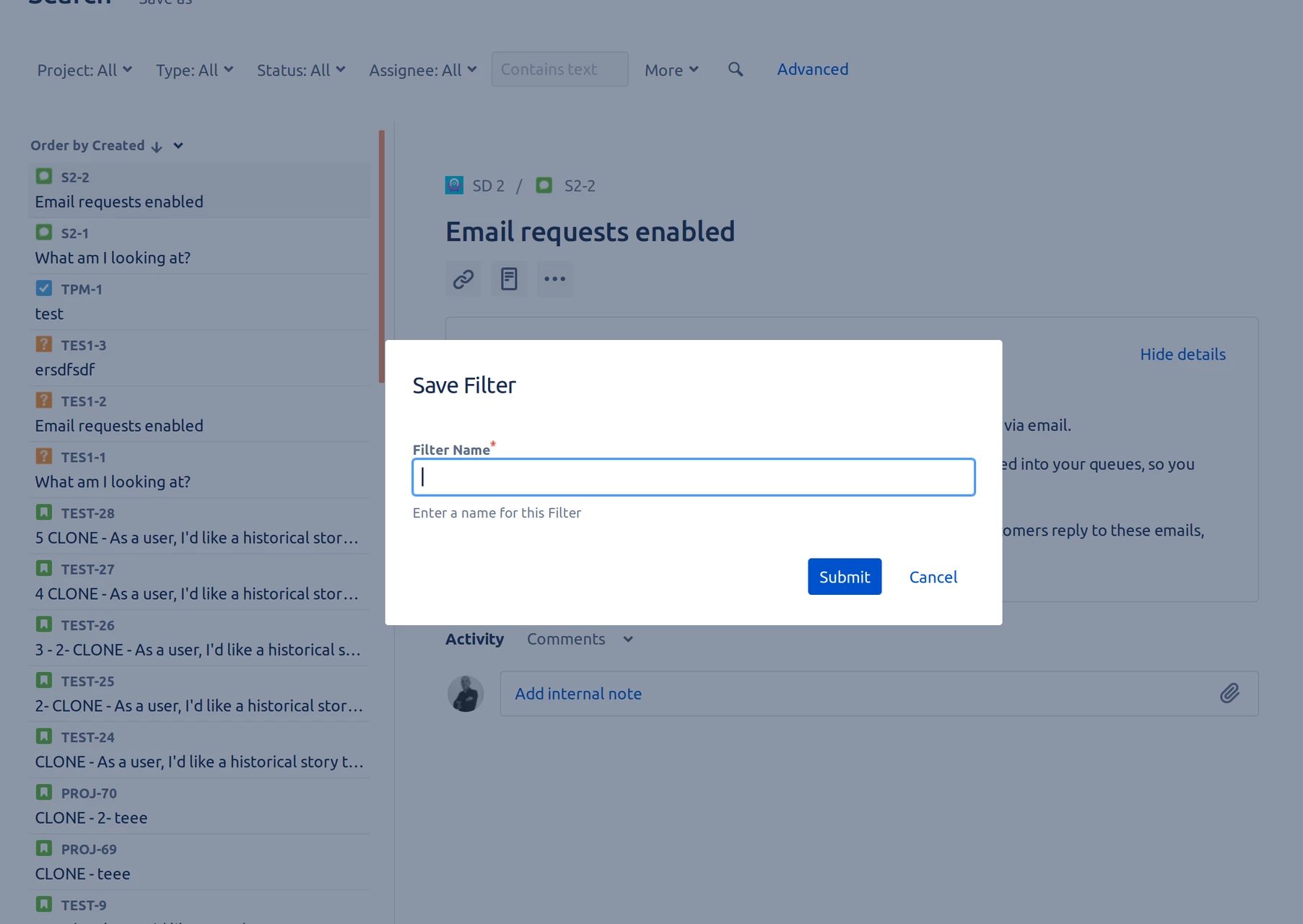
Creating a filter
Create your custom filter. You can use a basic or JQL filter. Then save the filter.
See the Atlassian documentation on saving your search as a filter.
Adding Filters Activity Stream for Cloud to the dashboard
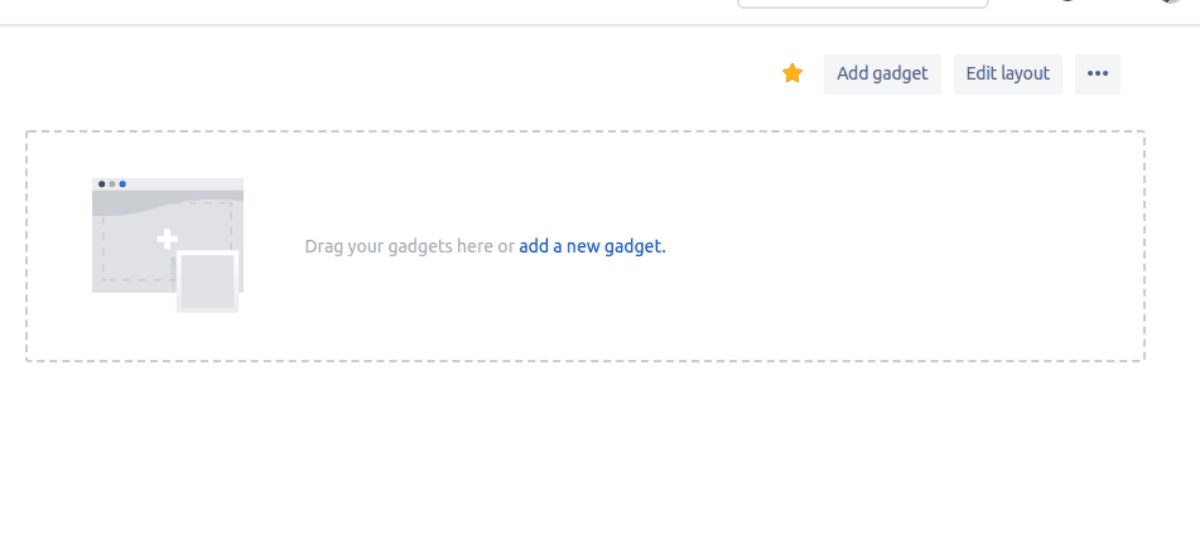
On your dashboard, you’ll see a window with “Drag your gadgets here or add a new gadget”. Click “add a new gadget”.
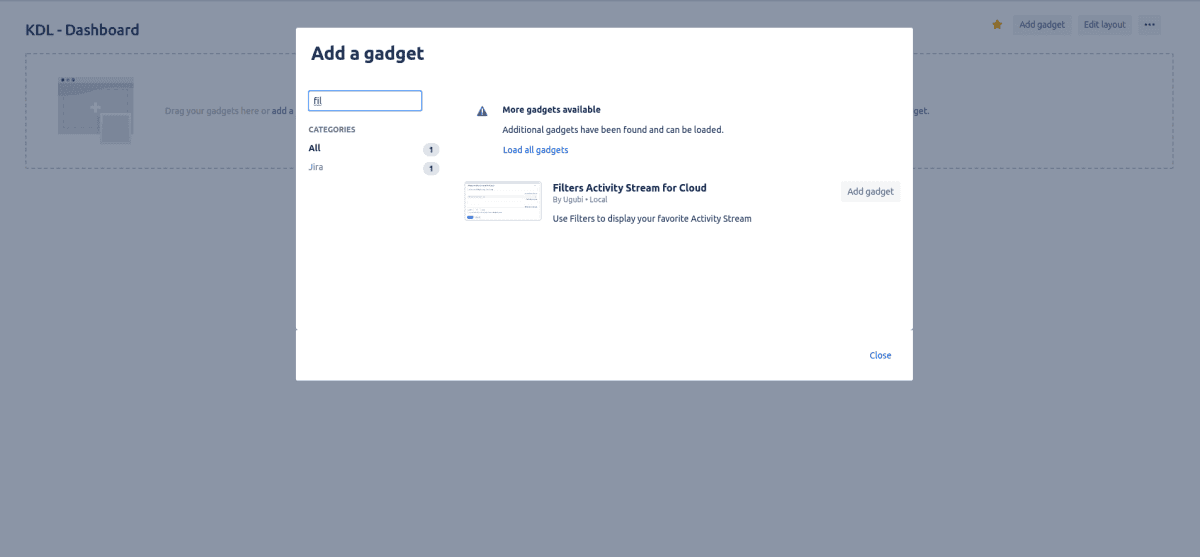
Use the search bar to find “Filters Activity Stream For Cloud By Ugubi” and add it to your dashboard.
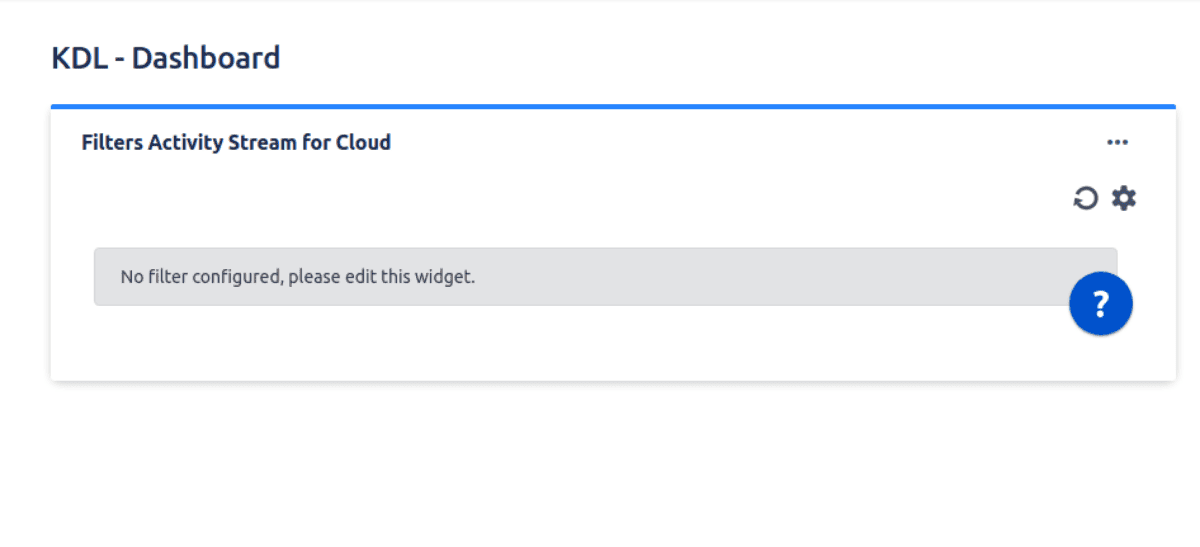
Starting with the app
Click “Configure gadget” to open the search window and customize your search.
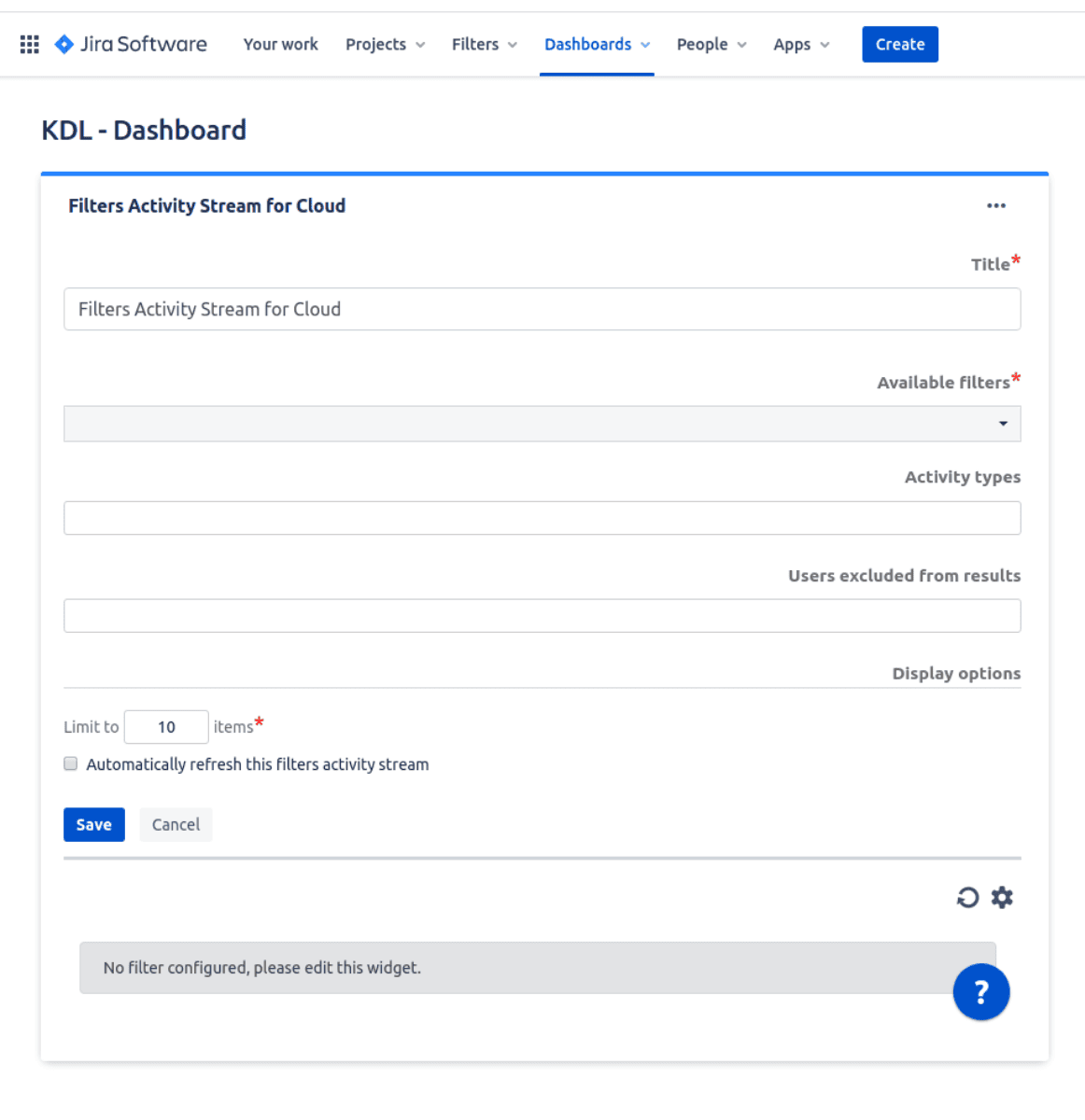
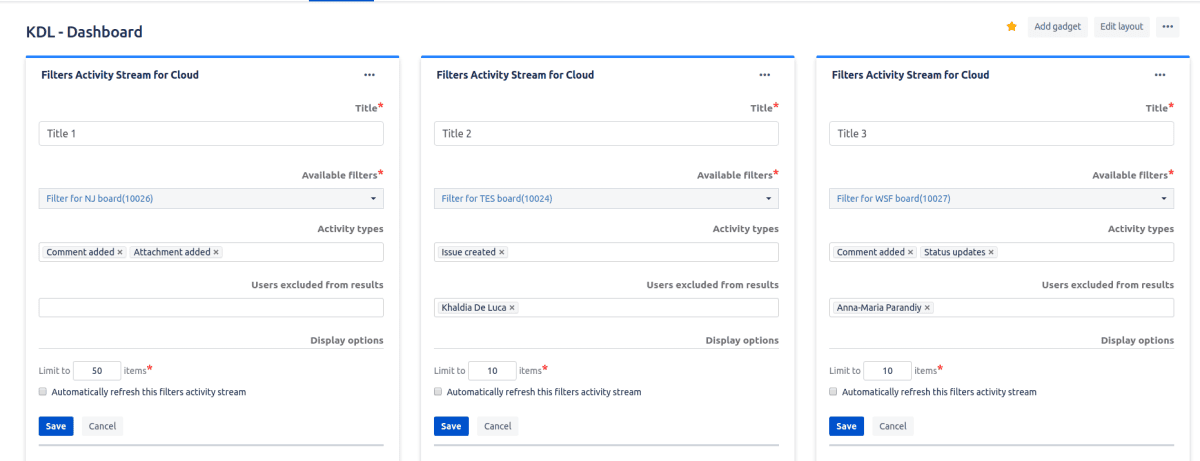
Customizing your filter
Complete the fields and save.
Title
You can keep the default title or add a new one. If you use several search filters at the same time, we recommend a different title for each so you can tell them apart.
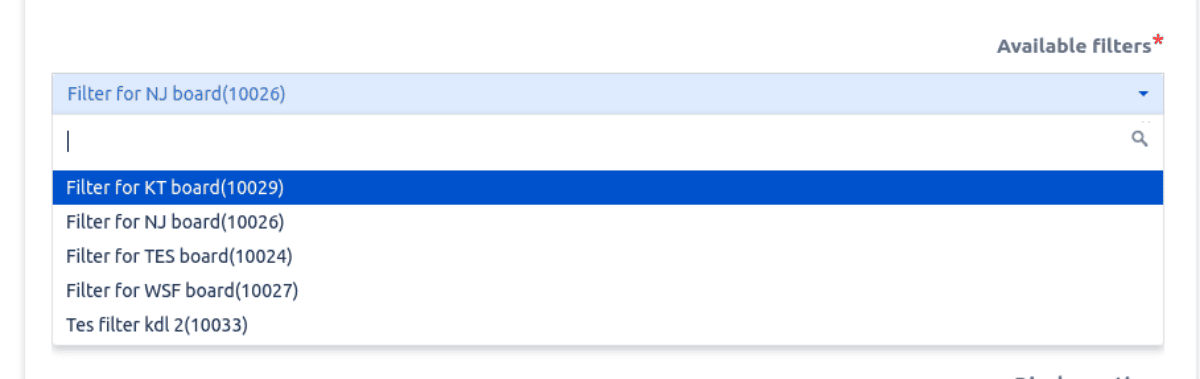
Available filters
Choose your custom filter from the search bar or directly from the list. This field can’t be empty.
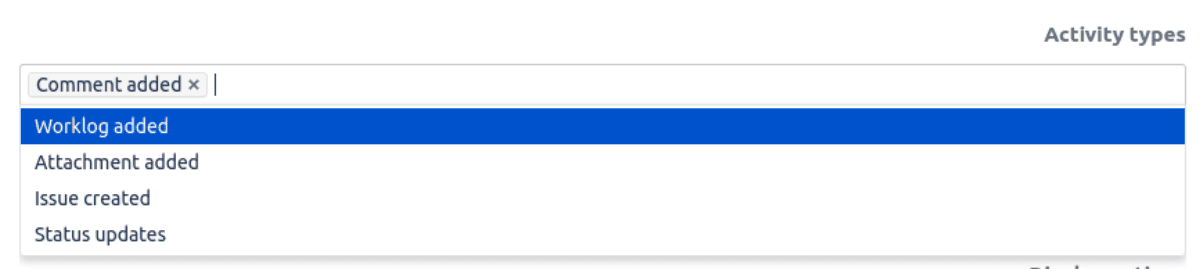
Activity types
Click the field to show the list of activity types. Choose one or more types to narrow down your activity feed.
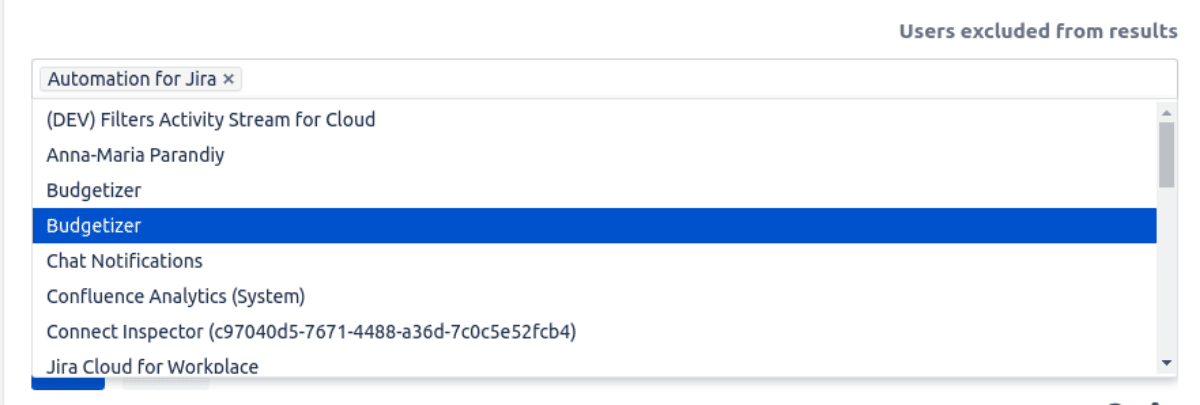
Users excluded from results
Click the field to show the list of users. Choose one or more users to exclude from the search.
Display options
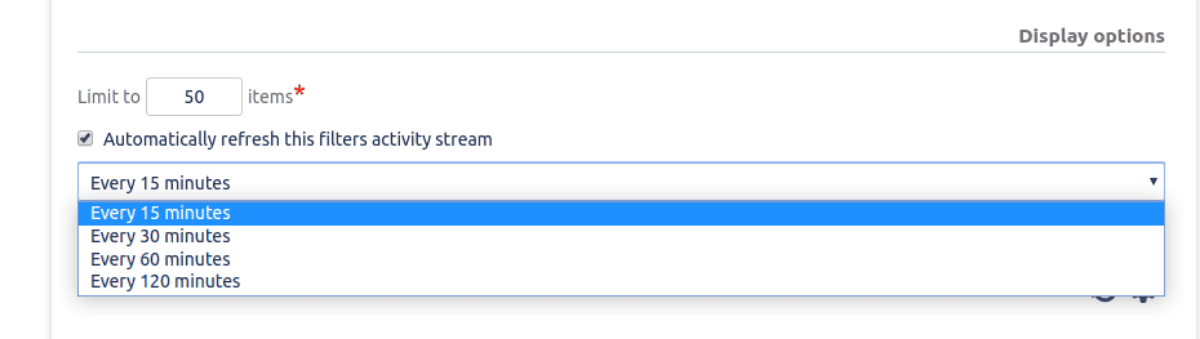
Limit of displayed items
You can set a limit on the number of items displayed for your search. You can still use the “Show more” button in the results later.
Refresh the activity stream automatically
To keep your content up to date without refreshing manually, select the checkbox to show a list of time periods and choose the one that suits you.
Checking the results
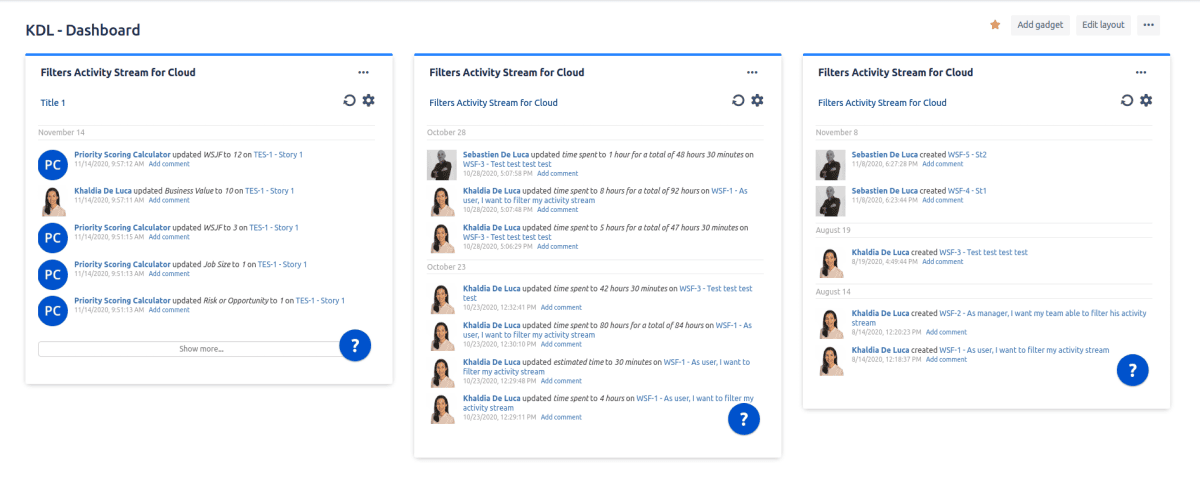
- The results are sorted by date.
- You can open the profile of the task author.
- You can go directly to the task from the result.
- Depending on your search, you can:
- check the time spent on a task and the total time already spent on it;
- check the estimated time of a task;
- check comments added to a task (you can reply directly from the results);
- check created and updated issues.
- Display more results with the “Show more” button.
Need help?
Please raise an issue in our support portal if you have questions or want to report a bug. We are here to support you.