Threaded Comments: Installation Guide
Getting started
Threaded Comments lets you create threaded comments in Jira issue comments.
This version greatly improves how you create threaded comments in Jira. It includes:
- a new comment editor;
- comment search;
- various bug fixes.
The latest comment appears at the top of the comments list.
Questions? Ask us any time.
Installing Threaded Comments
- Log in to your Jira instance as an admin.
- Click the admin dropdown menu and choose Add-ons. The Find new apps (or Find new add-ons) screen loads.
- Locate Threaded Comments.
- Click Free trial to download and install the app.
- You're all set! Click Close in the Installed and ready to go dialog.
Enabling third-party cookies in your browser
To use Threaded Comments and see the comment editor, third-party cookies must be enabled. Please check your browser configuration.
Microsoft Edge
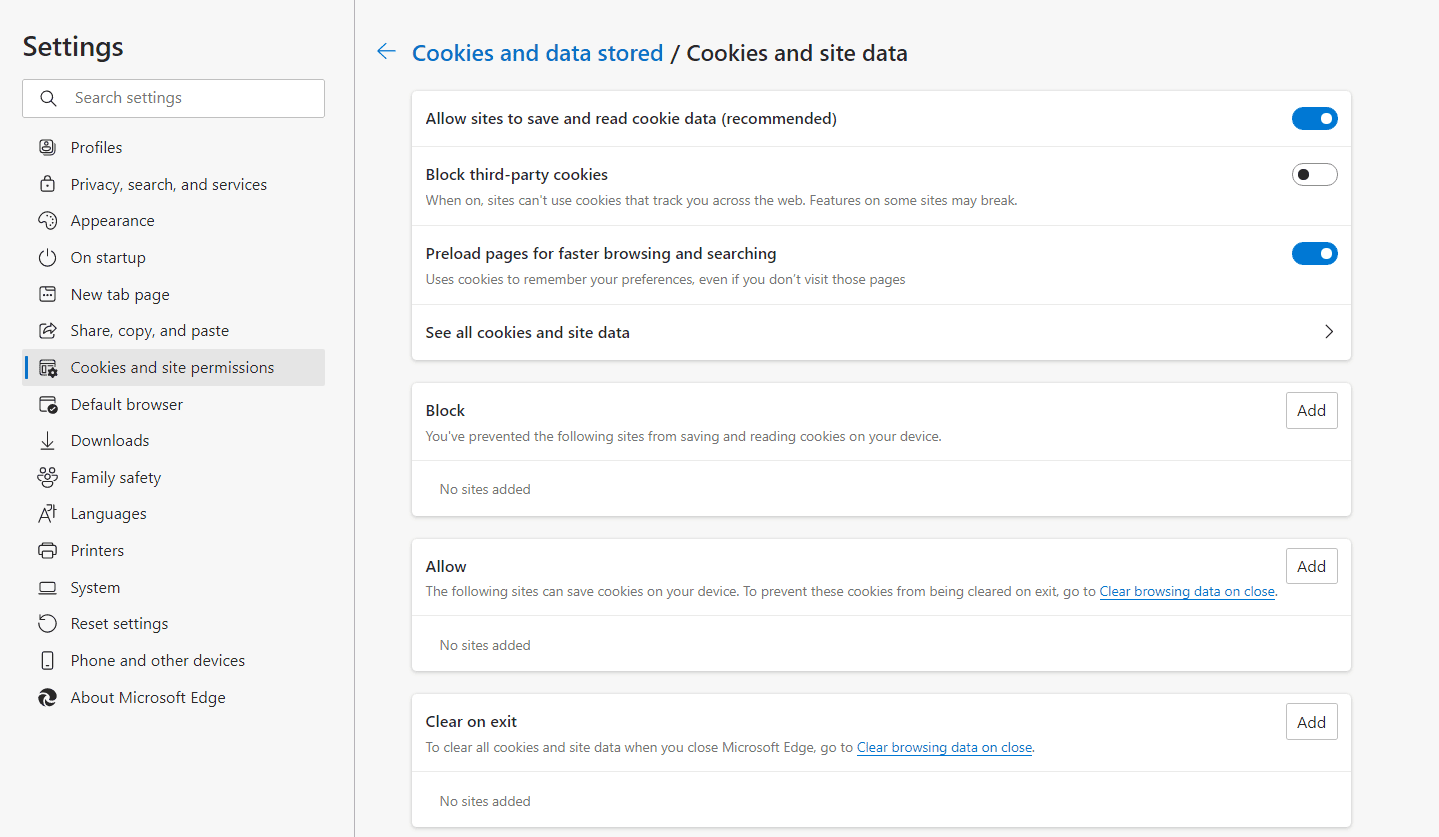
- Open Microsoft Edge and select Menu (the three-dot icon in the top right corner) > Settings > Site permissions > Cookies and site data.
- Turn off “Block third-party cookies”.
Chrome
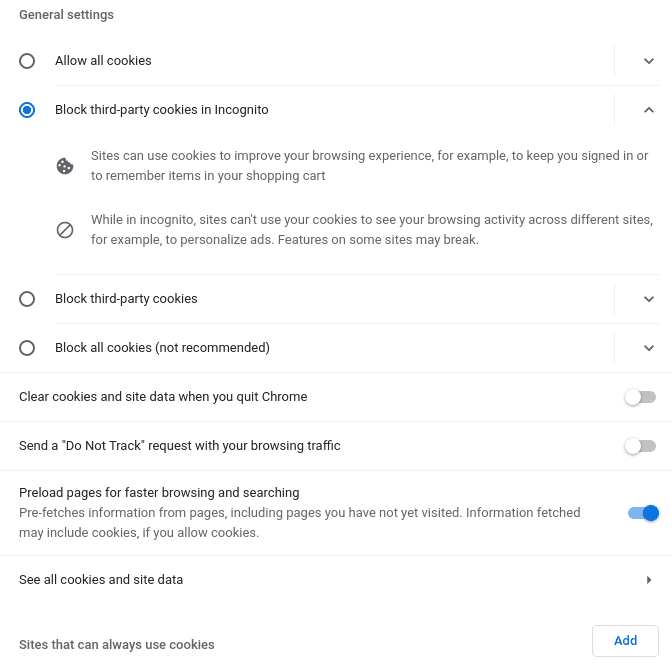
- Open Chrome and select Menu (the three-dot icon in the top right corner) > Settings > Privacy and security > Cookies and other site data.
- Turn on “Allow all cookies” or “Block third-party cookies in Incognito”.
Safari
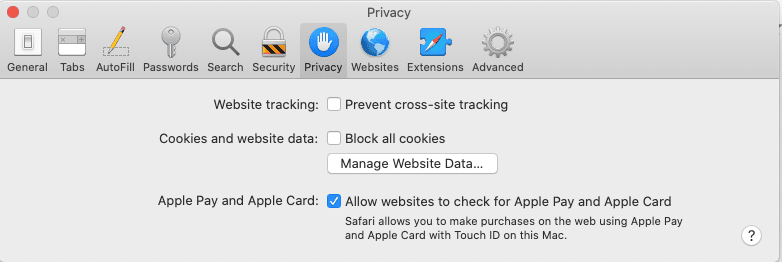
In the Safari app on your Mac, choose Safari > Preferences, click Privacy, then:
- Turn off “Prevent cross-site tracking”.
- Turn off “Block all cookies”.
Starting with Threaded Comments
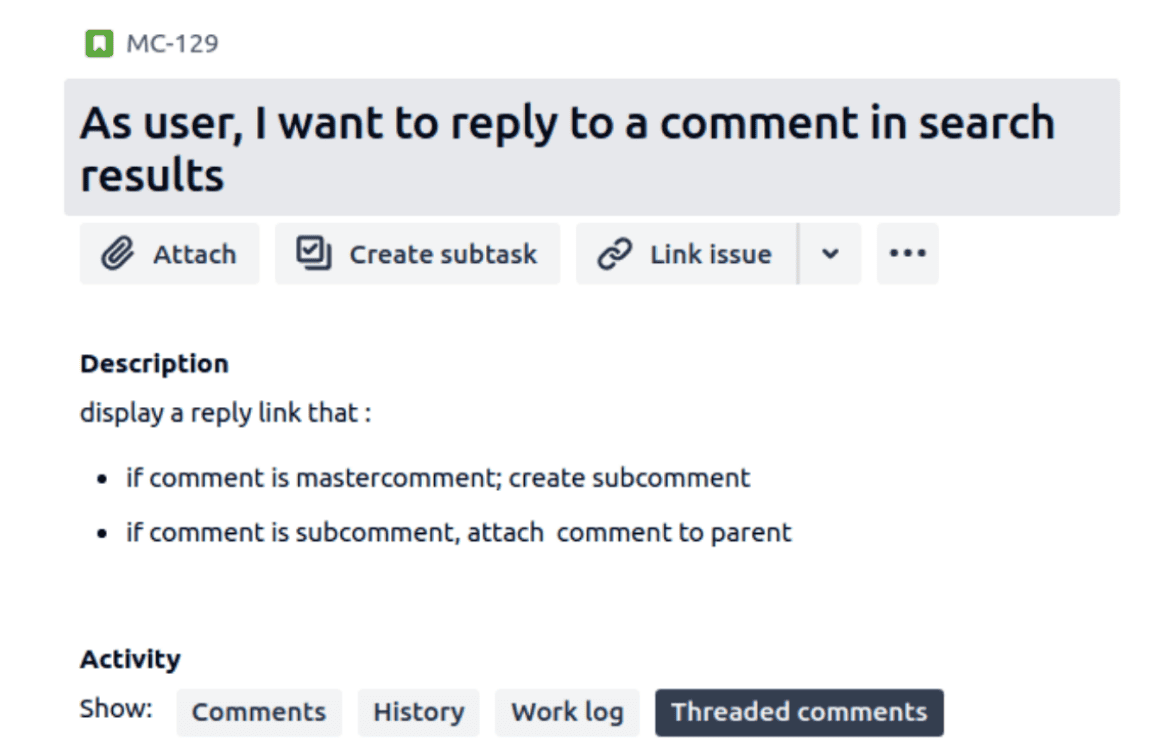
Once Threaded Comments is installed, a new tab appears automatically in the issue screen.
You can open it from the Activity tab, or add it manually to a specific issue from the menu bar.
Activity tab access
Menu bar access

Opening Threaded Comments by default in the issue view
Threaded Comments can open by default on the left side of the issue view. To enable this, create an empty group named threaded_comments_prefs. After you create the group, newly created issues are automatically configured to open Threaded Comments. Please wait 60 seconds after creating the group for the configuration to complete.
For older issues to behave the same way, they need to be updated, for example by adding a dummy label. To update many issues at once, use Jira's bulk edit feature. See the Atlassian documentation on editing multiple issues in bulk.
Adding comments and using the toolbar
Start a new top-level comment in the “Add a comment” field. The field has the same toolbar as the standard Jira editor, so you can format your comment. Then click “Save”.
To add another top-level comment, use the “Add a comment” field at the bottom of the thread.
Replying to a comment
Inside a comment, use the “Add a comment” field or click “Reply” to add a sub-comment. The same editor and toolbar appear. Add your sub-comment, then click “Save”.
Editing and deleting comments
As with standard Jira comments, you can edit or delete your comments.
Displaying a thread
Click “Display Thread” to view all comments in a conversation thread. Click “Refresh” to hide it again.
Refresh button
Click “Refresh”:
- to update the thread after using the search bar;
- to hide the open thread after clicking “Display Thread”;
- to activate the “Show more” button and reduce the number of comments shown;
- to update the thread after deleting a top-level comment;
- to load new comments.
Searching comments
Use the search bar to find a comment or sub-comment in the thread.
Enter a keyword of at least 3 characters in the “Search for comment” field and click “Search”. You can also create a new top-level comment directly from the search results.
If your search has no results, only the “Add a comment” field is shown.
When you're done, click “Refresh” to return to the full comment thread.
Need help?
Please raise an issue in our support portal if you have questions or want to report a bug. We are here to support you.